Spot a blocked handoff
Linked Tasks show their predecessor and a warning when the planned dates conflict.

Both plans
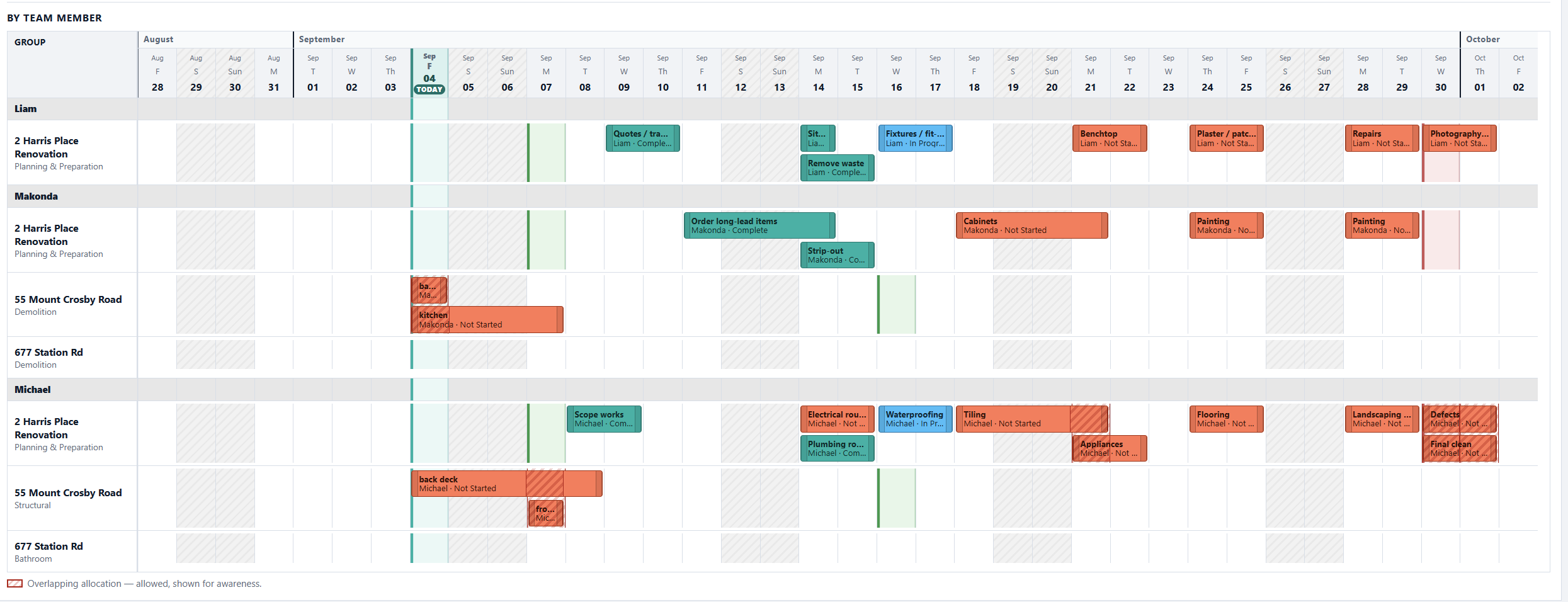
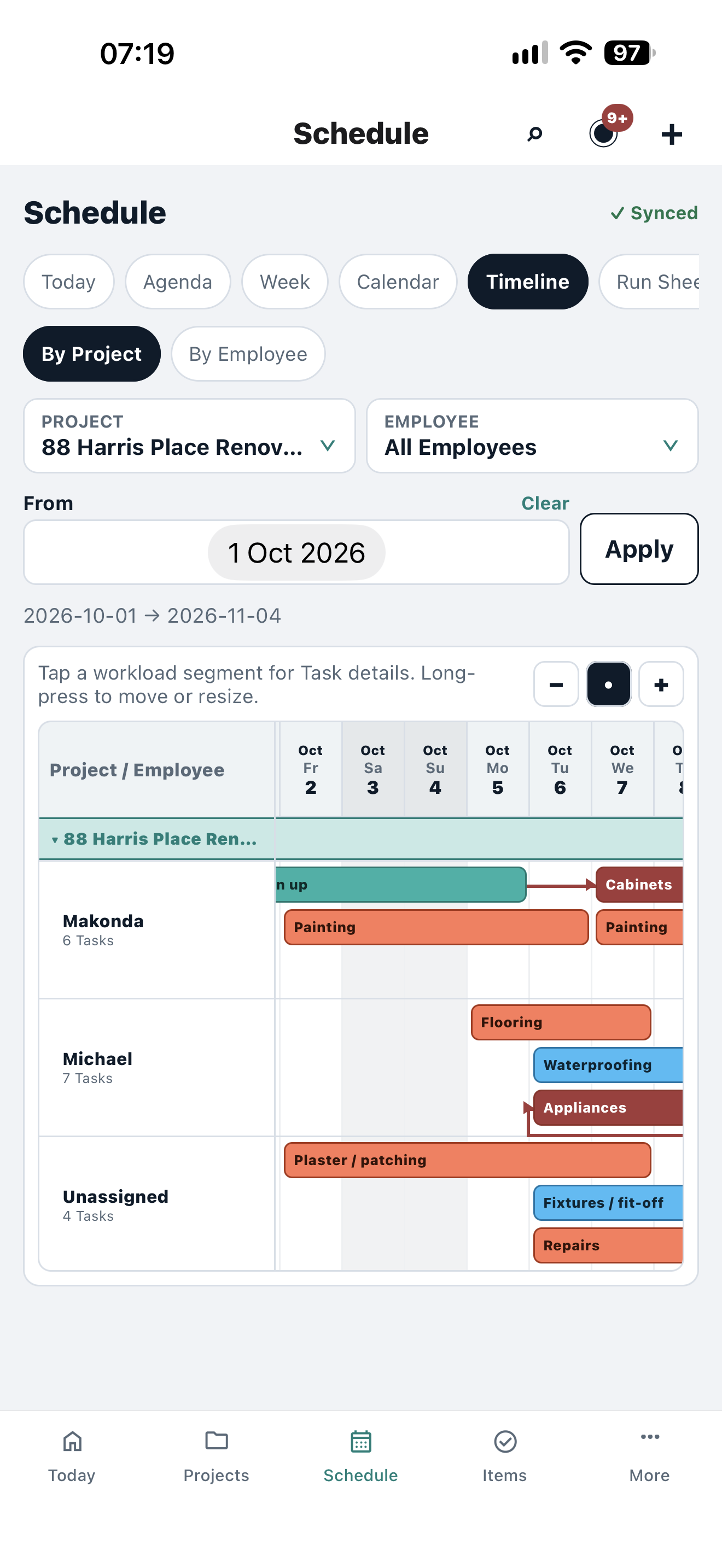
Review Project schedules, Task timelines, dependencies and supported calendar views, then adjust dates in context.
For teams that need to coordinate who is doing what, and when dependent work can start.
Add start and finish dates to Tasks in the Project work plan.
Link predecessor and successor Tasks so their relationship stays visible in the timeline.
Switch between Project and team views, then open the exact Task to adjust its details.
Team schedule.
In practice
Linked Tasks show their predecessor and a warning when the planned dates conflict.
Open the originating Task from its timeline row to adjust the plan and review the saved result.
No. It presents the same Project Tasks in time and team views.
Owned-asset bills and renewals belong in Portfolio Planner on Projects + Properties.
Both plans