Both plans

Material Requirements

Track required materials by category, quantity and needed date, with purchasing and shopping-list status linked to Project work.

Plan the work with less searching

For people ordering materials, equipment and other supplies for active Project work.

From setup to action

  1. 1

    Add an Item to the work

    Record the requirement on a Task or in Items, including quantity and needed date.

  2. 2

    Organise purchasing

    Filter outstanding requirements and review suppliers and procurement status.

  3. 3

    Follow through

    Open the linked Project and Task when a date or requirement changes.

Material Requirements in DayNext

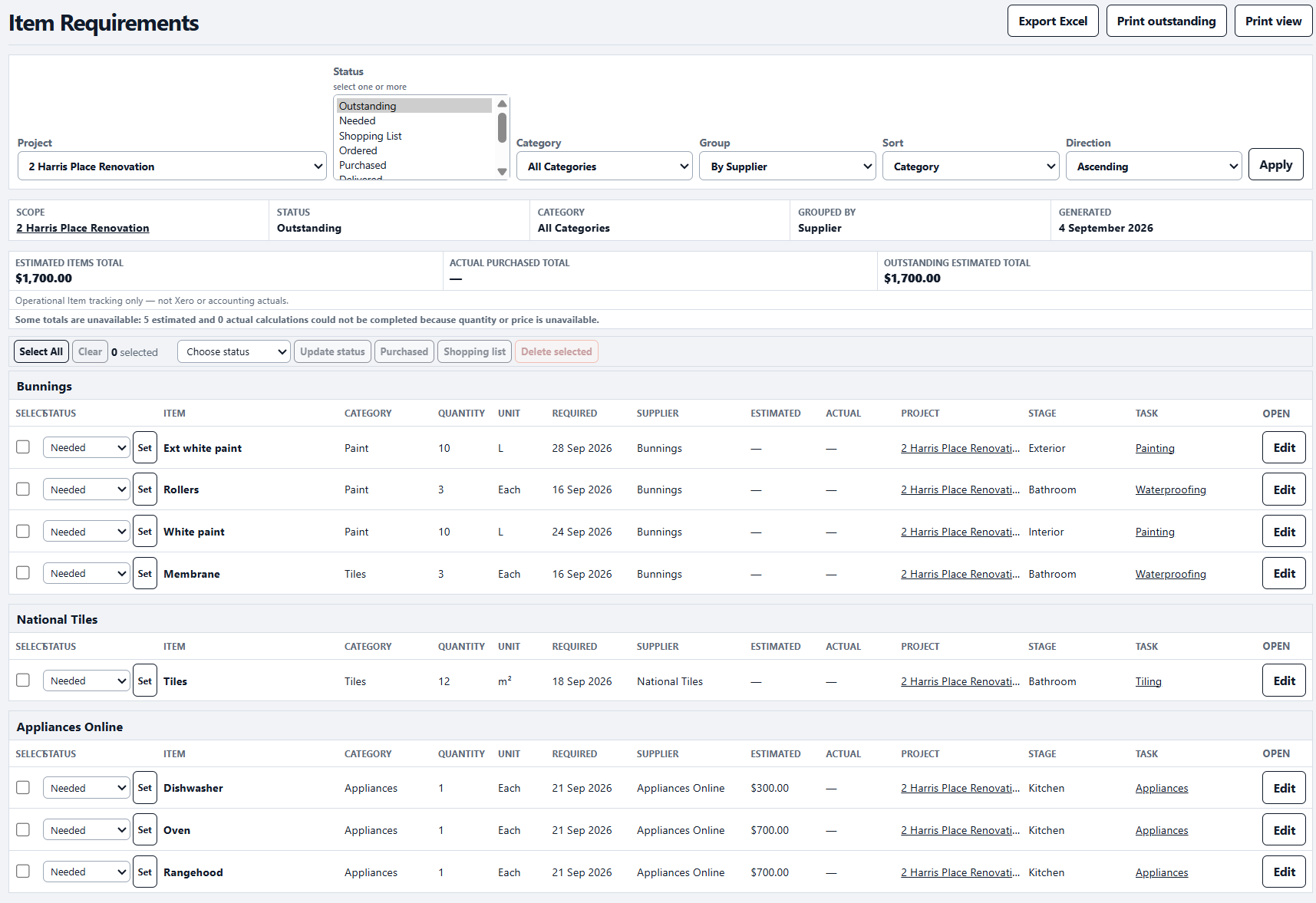
Materials list.

Item Requirements with categories, quantities, required dates and purchasing status
Material Requirements on WebMaterials list.

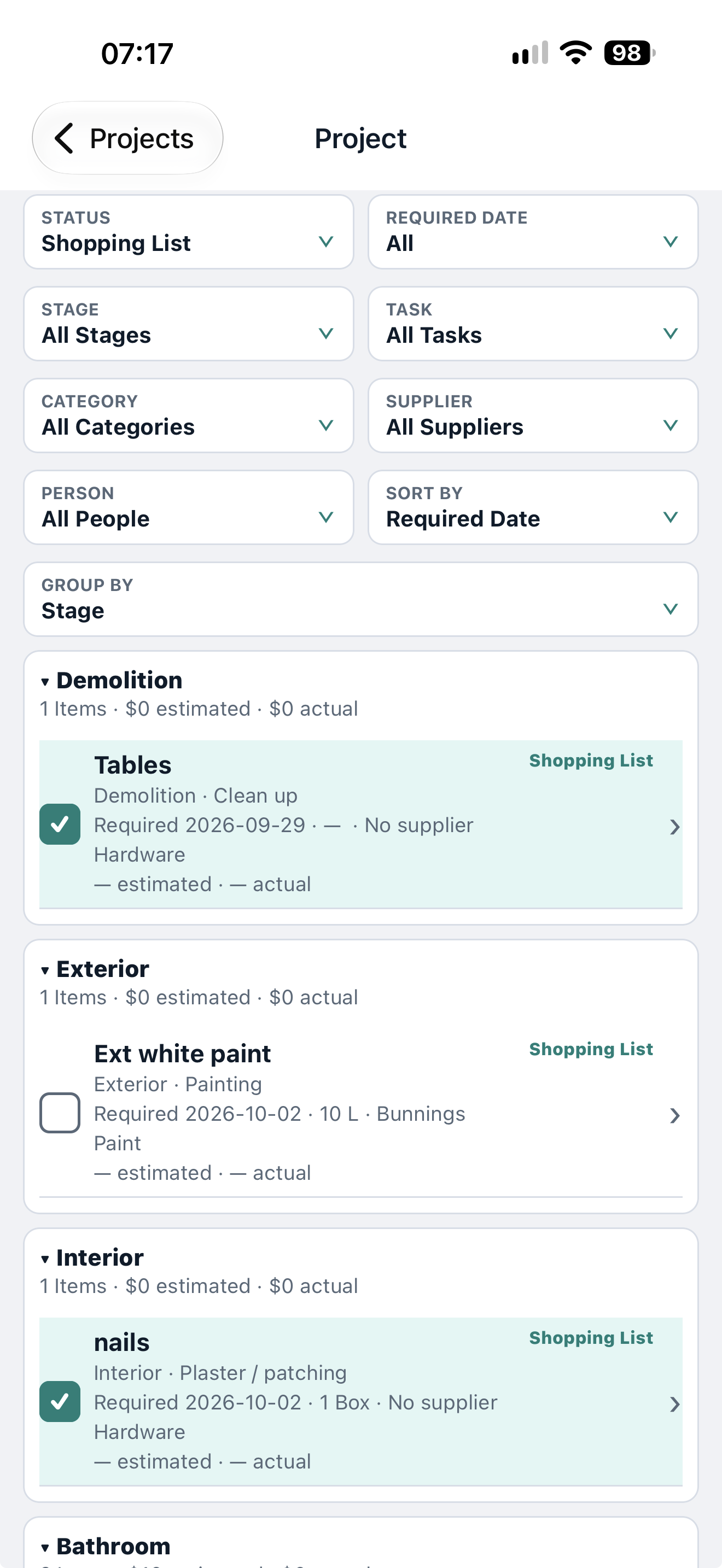
Your shopping list, in your pocket.

DayNext mobile shopping list with material categories and required dates
Mobile view.
  • Filter materials by category and required date.
  • Check quantities and mark Items as purchased.

In practice

Useful details in the same workspace

Buy from a focused list

Filter outstanding Items by Project, supplier, category or required date before shopping.

Keep the source visible

Each Item links back to its Project and Task, so an order can be checked against the work that needs it.

What to know

  • An Item needed date is a planning date; it does not prove an order or a cash payment.
  • Supplier and cost fields are user-entered; unknown amounts remain unknown.
  • Items are available in both plans.

Works with

Common questions

Can I see outstanding Items across Projects?

Yes. Items has Project and status filters for requirements that still need attention.

Does marking an Item ordered record a payment?

No. Procurement status and recorded costs are different information.

Both plans

Try Material Requirements in DayNext.

Start free trial